
How to Choose the Sharpest Photo: Zoom, Loupe and Comparison Techniques
A sharpness decision starts with the subject and the pixels you can actually inspect. Learn a repeatable way to compare detail without losing the expression, moment or intended use.
Choose the sharpness that the photograph needs
Judge the important subject, using a known image representation, at a useful scale. That is a more dependable starting point than rejecting whichever frame looks softest in a thumbnail grid. Sharpness is one part of a photographic decision, alongside expression, timing, framing and the intended use.
A portrait can have sharp hair and an unfocused near eye. A dance photograph can include deliberate motion while preserving a strong gesture. A landscape may need foreground-to-distance detail, whereas a quiet preparation photograph may intentionally isolate one hand. Decide what must be legible before examining every pixel equally.
This is a diagnostic and selection guide. It extends the side-by-side comparison guide by explaining what to inspect and how to interpret uncertainty. It does not offer an automatic focus score, a universal shutter-speed rule or a promise that software can recover detail never recorded.
First establish which pixels are on screen
The original camera file, an embedded preview, a system-rendered RAW view, a reduced catalog preview and a final sharpened JPEG are not equivalent evidence. A visible photograph confirms that some representation is available. It does not tell you its resolution, processing or relationship to the source.
Before a critical decision, check the selected file’s identity, source availability, reported dimensions and viewer status. Give a pending detail load a chance to finish. If the source drive is disconnected, retain the provisional choice and revisit it when the original is accessible. Repeatedly enlarging an offline thumbnail does not reveal the missing source information.
In reviewed Lightbox Pro 0.1.2 (60), Loupe distinguishes verified full-size raster detail, supported composite representations, system RAW detail-unverified, editing previews and reduced/offline previews. Read the detail and availability information in its control. A “100%” magnification setting alone does not certify that the lens is showing full sensor-level RAW detail.
For a disputed RAW frame, open the exact original in a validated processor that supports the camera. Compare a known rendering rather than treating two applications’ default previews as an optical test. Different sharpening, noise reduction, color and tone can change perceived crispness even when the source file is identical.
Look for a pattern, not just a soft impression
Start with a few meaningful edges: the eye you intended to emphasize, lettering near the subject, fabric texture and a stationary background detail. Compare their behavior. Do all edges show a similar directional trail? Is one depth plane clear while another is soft? Does the problem appear only after export?
Nikon’s shutter-speed explanation describes the relationship between exposure time and recorded motion. A faster exposure can reduce motion blur, but the necessary time depends on what moves and how it moves in the frame. Use recorded settings as context; a shutter value cannot prove a particular frame is sharp.
Scroll across the diagram to inspect its details.
| What you see | Possible explanation | Useful next check |
|---|---|---|
| A face is soft; an object behind it is clear | The intended subject may not lie in the sharp region. | Compare subject depth and adjacent frames before blaming general file quality. |
| Moving hands trail; a fixed table stays clear | Subject motion may be the main limitation. | Inspect another moment in the sequence and whether the motion is intentional. |
| Many unrelated edges show a similar direction | Camera movement is one possibility. | Compare the whole frame and nearby exposures; do not infer a lens fault from one image. |
| The background is soft but the important eye is clear | Selective focus may be doing its job. | Judge the intended portrait rather than requiring every plane to match. |
| Large halos or brittle texture surround edges | Rendering or sharpening may dominate perception. | Inspect a restrained rendering of the same original. |
| Only the web delivery looks soft | Resize, compression, processing or preview selection may differ. | Compare the downloaded output with the actual exported file at matching dimensions. |
Distinguish focus placement from depth of field
Focus is not a verdict on the whole frame at once. In a close portrait, the near eye, far eye, ear and flowers can occupy different distances. If the sharpest visible detail is behind the intended feature, record that observation rather than describing the entire photograph as low resolution.
Nikon’s aperture guidance explains depth of field as the region of acceptable sharpness around the focused subject. Wider apertures tend to reduce that region; smaller apertures tend to extend it. Whether the result is acceptable still depends on the subject, framing and use. A shallow-focus image is not inherently a failed image.
For a group, inspect the actual people who must be recognizable, including the outer rows. Do not stop after finding one sharp central face. If a back row is soft in every candidate, choosing the least soft thumbnail does not resolve the production issue. Consider a smaller placement, another moment or a different photograph, and keep the limitation visible.
A focus indicator recorded by a camera can provide context, but the pixels decide the selection. Do not assume that a marked point establishes precisely which face was sharp at exposure time. Likewise, one disappointing image is insufficient evidence for adjusting camera calibration or declaring a lens defective.
A two-row group needs more than one inspection point
Consider a hypothetical family group in two rows. In the first candidate, the front row is clearly defined but the rear row is uncertain. In the second, the rear row is clearer while an important front-row face is soft. Checking only the person in the center could make either image appear satisfactory.
Inspect one person near each end of both rows, then any face that looks different at Fit. Keep the rendering and scale comparable. If a third frame gives everyone acceptable detail but has a slightly less tidy background, it may serve the required family record better. This is a photographic tradeoff, not a calculation of average sharpness.
Finally check expressions and the planned crop. Technical coverage does not rescue a closed eye or a cut-off person. If no frame meets the intended large-print use, preserve the best available record and flag the limitation before promising an enlargement. Do not imply that an album layout, stronger sharpening or another magnification setting can supply the missing capture.
Use two viewing passes instead of permanent maximum zoom
Begin at Fit to understand the photograph. Check expression, gesture and composition before opening a small detail. A technically precise frame can still have a closed eye or an awkward hand; a localized inspection should not conceal those larger problems.
Then inspect the relevant feature at a known detail scale. Adobe’s Lightroom sharpening guidance explains why reduced views can conceal sharpening effects and recommends 1:1/100% when assessing them. That is a useful rendering check, not a demand that every final photograph look perfect under unlimited enlargement.
Lightbox Pro’s Loupe provides 100%, 200% and 400% inspection independently of normal canvas zoom. At 100%, one available source pixel maps to one display backing pixel; the larger settings enlarge the available pixels. They can help you see an edge pattern, but they do not create additional recorded detail. The comparison guide covers its controls and source-quality labels.
- Confirm identity and representation. Check the intended file, source access and detail status.
- Inspect the subject’s important feature. Avoid judging an eye by the sharpness of nearby hair or jewelry.
- Check another meaningful region. A stationary edge or a second depth plane can clarify what is happening.
- Return to the whole frame. Decide whether the finding changes the photograph’s usefulness.
- Record uncertainty separately. Keep a review flag if another rendering or original is still needed.
Make a fair comparison between candidates
Compare like with like before ranking. Use the same rendering stage and restrained sharpening treatment where possible. A strongly sharpened JPEG beside an untreated RAW preview can make processing look like superior focus. A brighter exposure can also make a face appear easier to inspect without containing better detail.
Linked zoom and pan are efficient when candidates share similar framing. If the subject is at different positions or scales, use independent adjustment to reach equivalent features. Matching viewport percentages does not guarantee matching face size, particularly with different cameras or substantial crops.
There are two valid questions. At a source-detail view, ask what each file actually recorded. At an intended-output view, ask which photograph serves the job. A higher-resolution file can be scrutinized more harshly when both are enlarged pixel for pixel; a small delivery may not expose that difference. Do not slide between those questions without noticing.
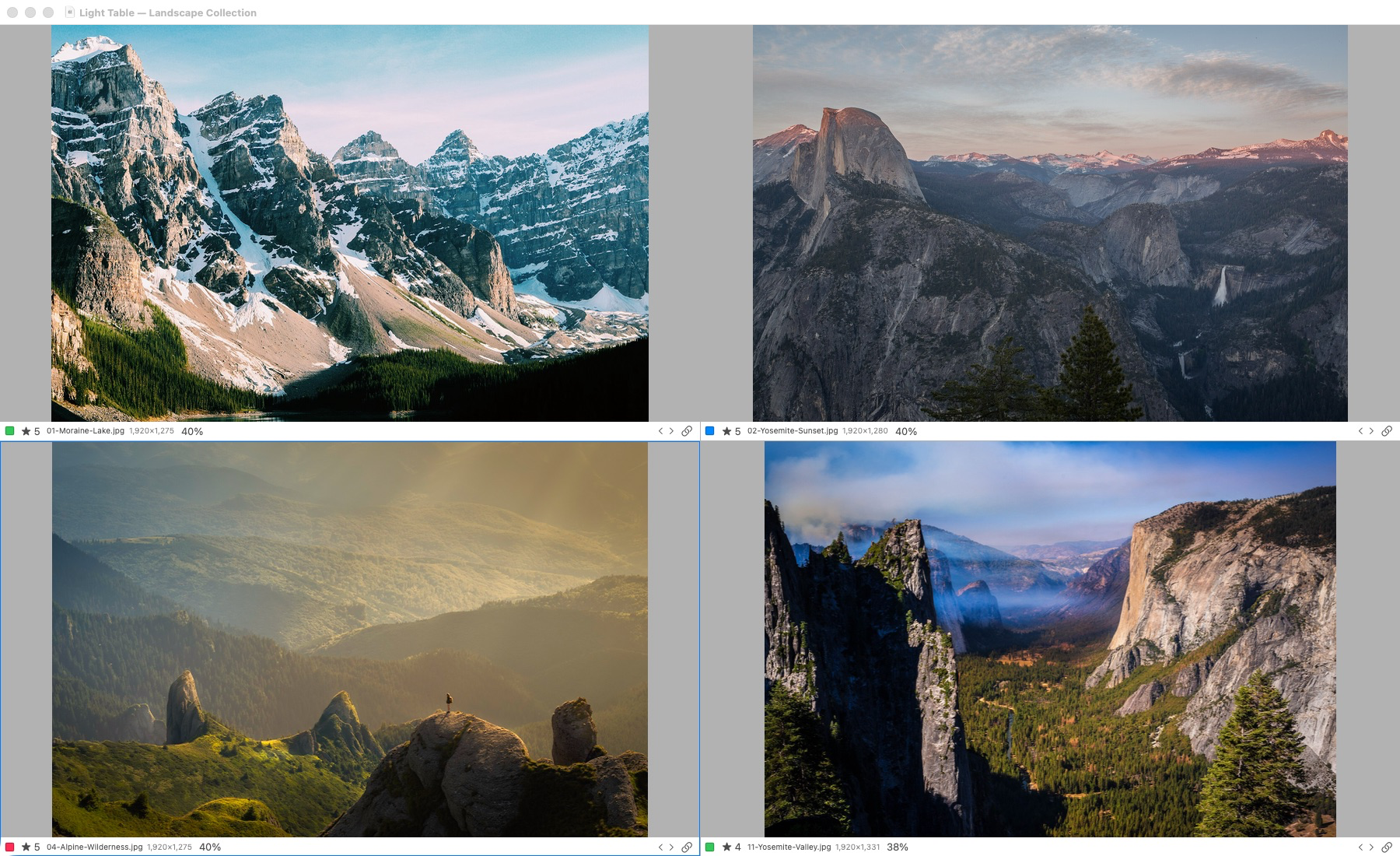
Actual application capture. Light Table supports one to six selected photographs. Original-detail inspection requires access to the originals; offline previews have reduced detail.
This earlier build-50 application capture shows the real four-image landscape comparison interface. It predates Loupe and is not a sharpness test. No client wedding photographs or simulated application controls are used in this guide.
Worked example: choosing between three portraits
Imagine three hypothetical frames from one short portrait sequence. Frame A has the most relaxed expression, B has a stronger pose, and C has the clearest eye detail. You intend to use one photograph as a large album portrait and another as a small supporting image. No measurement or actual test result is implied by this example.
At Fit, A reads best emotionally, but a hand crosses an important edge. B has a clear composition and open eyes. C is technically promising but its expression is less connected. Place all three in the comparison workspace and inspect the same near eye, then the other eye, hands and crop boundaries.
Suppose A’s eye detail remains uncertain because the viewer is using a reduced preview. Stop that part of the judgment. Reconnect the original or open the exact RAW in a validated processor before calling it soft. If the original then confirms acceptable focus, the first impression should not become a permanent rejection merely because it was recorded first.
Suppose B is clear where needed and C is slightly crisper but less engaging. For the large portrait, B may be the better choice. A may remain valuable in a smaller placement if the hand and framing work in the actual layout. Keep the decision tied to the photograph’s purpose instead of awarding an abstract winner for maximum edge contrast.
Record B as the intended large-portrait candidate and A as an alternate or supporting frame. Keep a short note if the choice depends on placement. This makes a later album revision more efficient than reopening every near-duplicate and trying to remember why one had five stars.
Judge the crop and the intended output
After cropping, 2400 retained pixels across eight inches supply 300 ppi. Changing a resolution label adds no pixels; Adobe explains image size and resampling. That arithmetic does not certify photographic sharpness.
If a group image must occupy a broad album spread, inspect every required face at the proposed scale. If the same image will be a small sequence panel, judge that placement separately. A useful working decision might be “acceptable at the small panel size, unsuitable for enlargement,” rather than simply keep or reject.
For an important print, prepare a representative output and assess an appropriate proof under reasonable conditions. A monitor enlargement is not the physical print. Conversely, a small online preview can hide a problem that matters in a larger product. Follow the chosen printer’s specifications instead of treating one viewing percentage as a universal threshold.
Keep sharpening and repair claims separate
Sharpening changes the presentation of edges. It can make a sound capture read more clearly, but a sharper-looking boundary is not proof that the original focus improved. Compare texture as well as contrast; conspicuous halos can look impressive in a quick glance and distracting in a print.
Noise reduction can also change apparent detail. Skin, fine fabric and hair may become smooth while strong edges remain defined. If two candidates were processed differently, make a comparable rendering before deciding which contains more usable information. Avoid treating skin pores as the sole quality measure for a portrait.
Restoration and generative reconstruction tools create another question: does the result remain suitable for the intended photograph? Keep the original and compare important features. A plausible eye or texture is not evidence that those exact details were captured. Do not silently substitute a reconstructed identity-critical result for the source in a technical comparison.
The current Lightbox Pro Loupe is an inspection tool, not an automated blur diagnosis or a completed RAW sharpening engine. Its reviewed native checks include JPEG, a large TIFF and a Canon CR2 case, with explicit representation limits. They are not universal camera, minimum-memory or print-quality certification.
Turn inspection into a useful decision record
Keep three outcomes distinct: suitable for the intended use, unsuitable for that use, and not yet judgeable. The last category prevents missing originals, slow detail loading or an uncertain RAW preview from being mistaken for optical failure.
For a recurring problem, collect a small, clearly identified set of original examples and record camera, lens, exposure information, focus method if known and the observed pattern. Separate subject motion, probable focus placement and display/export differences. Review the camera maker’s instructions and run a controlled test before changing equipment settings.
Finish by returning to the sequence. Check that technical inspection has not removed the only useful moment or left an unnecessary run of near-identical frames. Record the selection in a rating or set, and preserve enough context for the next editing stage. For a longer job, the ratings and labels guide provides a vocabulary for making those decisions retrievable.