
Compare Photos Side by Side on Mac with Light Table
A contact sheet helps you find the candidates. Side-by-side comparison helps you choose between them. The useful change is keeping the relevant photographs visible while you examine the same question.
Contact sheet or comparison view?
A thumbnail grid gives a broad view of a shoot. It is useful for recognizing sequences, finding an unusual gesture or spotting a gap in coverage. Its strength is breadth: many photographs remain visible at once.
Comparison changes the scale of the question. Instead of asking what is in the shoot, you might ask which portrait has the best expression, whether the second landscape has cleaner edges, or which frame holds detail where it matters. A few larger photographs are more useful for that decision than an entire contact sheet.
Neither view replaces the other. Move from the catalog to a deliberately small comparison, make the decision, and return to the wider sequence. This keeps a local technical preference from overshadowing the overall story.
Select for one decision
Start with a clear question and a relevant group. Two nearly identical portraits are easier to assess together than six unrelated favorites. For a landscape, the question might concern foreground shape or a passing cloud. For a group portrait, it may be the combination of everyone’s expression.
Keep framing and orientation in mind. Linked inspection is particularly helpful when subjects occupy similar positions. If one photograph is tightly framed and another is wide, you may need independent adjustment to bring the relevant details into view.
Work from the correct filtered and sorted sequence. A comparison opened from a shortlist should not accidentally introduce an unrelated neighboring photograph. Before rating anything, check the filenames and the active pane, especially when several frames look almost identical.
Open the selected photographs
In the reviewed Lightbox Pro build 0.1.2 (60), select one to six photographs in the catalog, then open Light Table with Command–/. It opens exactly the explicit selection in displayed catalog order. A single selected photograph does not silently expand to a set of neighbors; more than six requires a smaller selection.
The separate comparison workspace offers layouts suited to the images. Start with the smallest useful group so each photograph has room. Add panes deliberately when another candidate is needed; pane count can be changed up to six. More panes provide context but reduce the area available for inspecting each image.
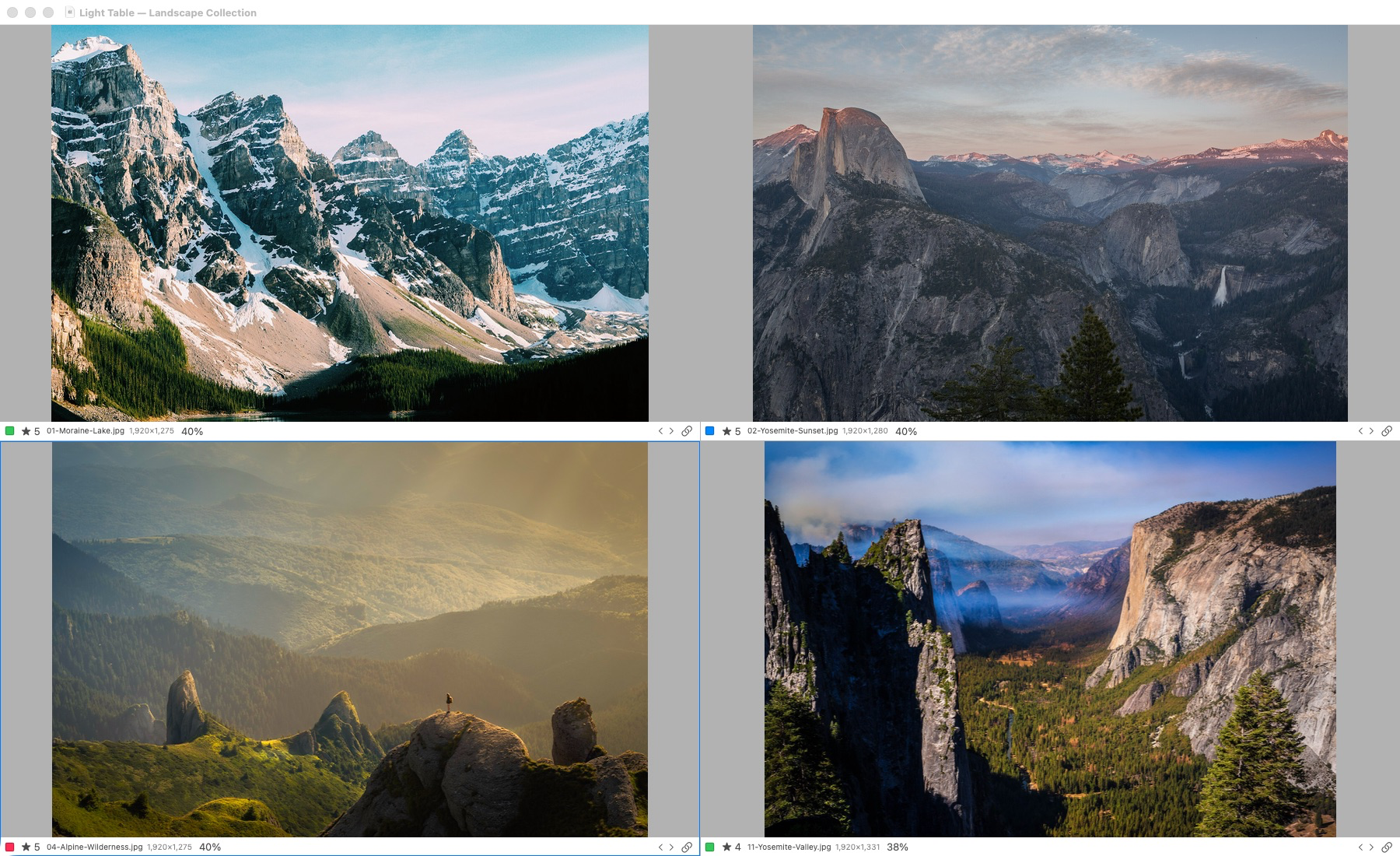
Actual application capture. Light Table supports one to six selected photographs. Original-detail inspection requires access to the originals; offline previews have reduced detail.
This earlier build-50 application screenshot shows four landscape photographs in the actual Light Table interface. It predates Loupe and demonstrates arrangement and information strips, not a sharpness result or measured rendering performance. Capture provenance and image credits identify the source material.
Use linked and independent inspection
Linked zoom and pan help keep a comparison aligned as you inspect detail. In the reviewed build, S toggles linked scrolling and zoom. Numeric zoom steps are based on original-pixel scale, and the active pane can be navigated independently within the supplied sequence.
Use a linked view to compare similar framing. For example, enlarge two portrait frames to examine the eyes, then move across the face or clothing without repeatedly reconstructing the view. Check the full composition again before making the final choice.
Switch to independent control when corresponding subjects do not occupy matching positions. Bring the relevant part of each image into view separately. Matching screen position does not imply matching subject scale, so compare the meaningful details rather than treating identical viewport settings as a guarantee of fairness.
After navigating, confirm the active pane and filename before assigning a rating; similar frames are easy to confuse.
Know which pixels you are judging
A fitted image is useful for composition, balance and expression. Critical detail calls for access to original pixels at an appropriate viewing scale. Start at the overall view, inspect the important area, then return to Fit to check that the preferred detail still belongs to the better photograph.
Lightbox Pro’s persistent catalog previews support browsing when an original is unavailable. They are intentionally different from full-resolution source images. A reduced preview cannot establish fine focus, subtle motion blur or the quality of a large print. Check source availability and displayed preview status before using detail as the deciding factor.
Do not confuse enlargement with newly recovered information. Increasing the display scale of limited preview pixels does not create missing source detail. If the source drive is disconnected, preserve the provisional choice and revisit it after the correct originals are available.
Inspect with Loupe
The pointer-following Loupe is available alongside Media and Light Table zoom. Press L to switch it on or off while a photograph viewer has focus. Choose 100%, 200% or 400% from the Loupe magnification control; Shift–Command–L is the menu toggle alternative. Text fields retain ordinary typing.
Loupe magnification is independent of comparison zoom and pan. At 100%, one available source pixel maps to one display backing pixel; 200% and 400% enlarge those pixels. Moving the pointer or navigating to another photograph changes the inspected target without making a catalog edit.
Check the detail and availability information in the Loupe control. Verified full-size raster pixels are source detail. System RAW image · detail unverified does not certify sensor-level focus; unapplied edits and Before use editing previews. Reduced or offline pixels remain preview-only, with sharpness unavailable. This distinction is more useful than treating every visible “100%” as an equal-quality source.
Loupe adds no automated focus score or face ranking; format support remains source-dependent.
Record the choice and return
Use the pane’s rating or label controls to record the decision in the catalog. Keep the meaning consistent: a rating may express photographic preference, while a label can mark a frame for another look. These local organizational changes do not alter the original image bytes.
Press Escape to return to the catalog with its selection retained. Review the choice in context. If both frames tell different parts of the story, keep both; comparison does not require a single winner in every group.
Save the result in a meaningful set, such as a job shortlist or portfolio consideration. Sets are relationships within the catalog. They do not automatically create exported files, move originals or publish a client gallery. Those later actions should remain explicit.
A repeatable comparison routine
- Name the question. Expression, timing, framing or technical detail should lead the inspection.
- Select a small relevant group. Keep enough context to choose without filling every available pane.
- Check the whole frame. Notice edges, background, gesture and coverage before zooming.
- Inspect meaningful detail. Use linked or independent control as appropriate, with originals available for critical judgments.
- Record and revisit. Rate the intended photograph, return to the catalog, and assess its place in the sequence.
For a job-based example, see the wedding culling guide. For broader organization, read photo cataloging software for Mac. Explore the Light Table feature and Field notes for confirmed product progress.