
Photo Cataloging Software for Mac: A Practical Guide
A useful photo catalog keeps more than a view of your files. It keeps the decisions that make a collection understandable: what belongs together, what matters, and where the originals can be found.
What a photo catalog does
A folder answers a location question: where is this file? A catalog adds relationships. A photograph can belong to a particular commission, a printing shortlist and a landscape portfolio while remaining one original file. Ratings, labels and sets give those relationships a shape you can return to.
A catalog commonly holds file references, recorded image information and thumbnails or previews. Those components have different purposes. A thumbnail helps you recognize a photograph; a reference points to its source; a rating records a decision. None of them automatically replaces the full-resolution image.
This distinction helps when choosing photo cataloging software for Mac. Start with the work you need to find again, rather than a long feature list. A wedding photographer may organize by job and selection stage. An archive owner may care most about old captions, folder references and the ability to reopen a catalog years later.
Know where the originals live
Before importing a collection, establish whether the application copies originals into a managed library, leaves them in their existing folders as referenced files, or offers both approaches. Neither storage model removes the need for backups. Each changes what you must preserve and what happens when a drive is disconnected.
The distinction is not unique to professional cataloging applications. Apple documents referenced files in Photos, including their separate storage and backup considerations. Check the behavior of the particular application and import option you use; do not assume every program treats “import” the same way.
In a referenced workflow, plan a stable source folder structure first. If a catalog points to an external drive, keep that drive identifiable and available when original pixels are needed. Renaming folders in Finder may break a stored reference even though the photograph itself remains safe.
Give each organizing tool a job
- Folders: physical location
- Use them for a durable file structure, such as year and job. They should remain understandable without a particular catalog application.
- Sets or collections: relationships
- Group photographs by purpose. A job, a portfolio shortlist and a print selection can overlap without creating extra original files.
- Ratings: a consistent judgment
- Define what each level means before a long review. For example, use a lower rating for a viable frame and a higher one for a final choice.
- Labels: a working state
- Use a small vocabulary for stages such as “needs comparison” or “ready for handoff.” Keep that separate from photographic quality.
- Keywords and captions: descriptive information
- Check whether the software can display, search, edit and export each field. Those are separate capabilities; retaining imported text does not establish all four.
A useful system stays small enough to apply consistently. If five different tools all mean “favorite,” later searches become less reliable. Write a short key explaining your ratings and labels, and keep it with the job documentation.
Test a representative collection
Evaluate a catalog with a backed-up sample that resembles your real work: horizontal and vertical frames, near-duplicates, a few large files, nested folders and any legacy metadata you need. An attractive demonstration with small JPEGs cannot establish how your own mixed archive will behave.
- Inspect the import. Compare file counts and recorded locations. Confirm whether originals were copied, referenced or moved.
- Make recoverable decisions. Apply ratings, a label and overlapping sets. Check that the intended photographs are targeted.
- Review and compare. Open an image at detail view and compare a small selection. Notice when the software is showing a reduced preview.
- Close and reopen. Check organization, references and saved decisions after a normal restart.
- Test absence carefully. With backups safe and no writes in progress, test a disposable sample on an unavailable drive. Observe the warnings and recovery process before relying on offline access.
The Lightbox Pro approach
The reviewed Lightbox Pro build 0.1.2 (60) uses local catalogs that reference photographs. Thumbnail, List and Media views support browsing, with ratings, color labels, filters and nested sets. Independent native catalog windows keep separate jobs in their own working contexts.
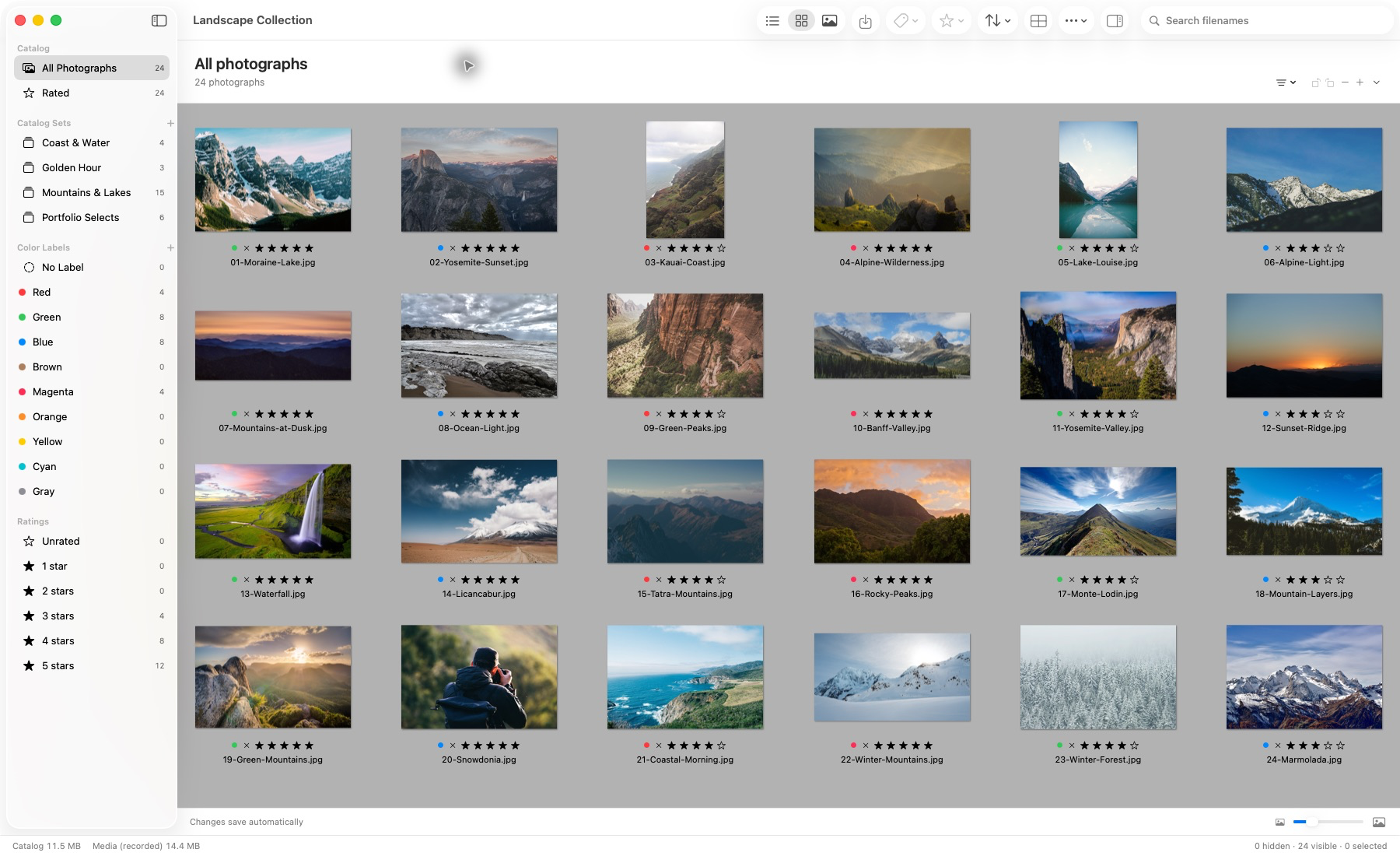
Actual application capture. Photographs remain in their source locations.
This earlier build-50 application capture shows the landscape demonstration catalog, with sets, labels and ratings visible. It predates the current Loupe and import-progress controls and is not evidence of a measured library-size or speed limit. Photograph credits and capture provenance are available separately.
Current search matches filenames. Supported imported descriptions, keywords and custom-field values are retained read-only; they should not be described as a complete native keyword editor or a general metadata search system. For comparisons, Light Table supports one to six selected images with linked or independent zoom and pan.
Loupe adds pointer-based inspection at 100%, 200% and 400%, with L toggling it in focused photograph viewers. Detail status matters: verified full-size raster detail, system RAW images with unverified detail, editing previews and reduced offline previews are distinguished. Magnification does not turn a limited representation into original-detail proof.
During import, committed photographs become browsable while offline-preview preparation continues. The bottom status strip separates committed counts from stored preview counts and provides Stop. This permits reviewing work already cataloged; a completed entry count does not mean full-resolution images have all rendered.
Supported original iView MediaPro catalogs have a reviewed import path, with compatibility limits. If that matters to your decision, read the original .ivc import guide before planning a migration.
Protect files and decisions
Back up the source photographs and the catalog. A copy of one cannot stand in for the other: the originals hold image data, while the catalog may hold organization and editing decisions. Keep any sidecars and relevant job notes with the preservation plan as well.
The Library of Congress’s digital photograph guidance recommends identifying photographs, organizing important material and keeping copies in separate locations. Add a restore check to your own routine: confirm that a backup opens and that representative originals can actually be read.
Choose around your working day
Write down the tasks that must work today: browse an archive, cull a commission, compare detail, recover an old catalog or pass selected originals to an editor. Evaluate each task directly. Camera ingest, RAW sensor development, hosted delivery and catalog preservation are different requirements.
Continue with organizing without moving original files or explore the Lightbox Pro workflow. For current release information, see Field notes or contact software support.