
How to Organize Thousands of Photos
You do not need to finish sorting every photograph before your library becomes useful. Start with a dependable file structure, make a few consistent decisions, and leave a record that your future self can understand.
Start with an inventory, not a mass move
A library spread over three disks, an old laptop and several exported folders is difficult because its boundaries are unclear. First write down what exists: drive name, principal folders, approximate date range, file types and known backups. Mark folders whose contents are uncertain. Keep the original locations intact while you investigate.
Choose one representative job to organize before applying a new system to the archive. For example, use a landscape trip containing camera originals, several edited TIFFs and a folder of web JPEGs. Decide which files are originals, working edits and delivered derivatives. Similar-looking photographs are not necessarily duplicate files, and a smaller JPEG does not replace a RAW original.
The Library of Congress’s digital photograph guidance starts with finding photographs across devices and recording how they are organized. A short written inventory is useful even if you later change cataloging applications.
Give files a stable home
Use folders to answer a physical question: where does this job live? A simple example is Photographs/2026/2026-06-14_North-Coast/Originals/, with separate Edits and Exports folders beside it. The date format sorts predictably; the short job description gives a person something to recognize. This is a suggested convention, not a required Lightbox Pro structure.
Preserve original filenames until you understand existing references, sidecars and duplicate names. If you later rename files, use an application and process that keep those relationships intact, and test on a backed-up sample. A filename such as IMG_0042 may appear on several cards; it is not a unique identity across an entire career.
Avoid rebuilding the folder tree for every new purpose. A photograph taken on that trip can belong to a coastal portfolio, a print shortlist and a travel story. Giving it three physical homes makes it harder to know which copy contains the current work.
Let the catalog hold relationships
A catalog records information about photographs and references their locations. Virtual groups add another way to arrange them without requiring another original file. In the trip example, keep the shoot together on disk and create groups for Coast, Print candidates and Portfolio review.
Lightbox Pro’s reviewed development build 0.1.2 (60) uses local, referenced photographs. Thumbnail, List and Media views, nested catalog sets, ratings, color labels and filename filtering support this kind of organization. A photograph can participate in overlapping sets while its source stays in the same location. The earlier supplied capture below shows the actual application with a demonstration landscape collection; it is not a build-60 capture or a claim about managing a particular library size.
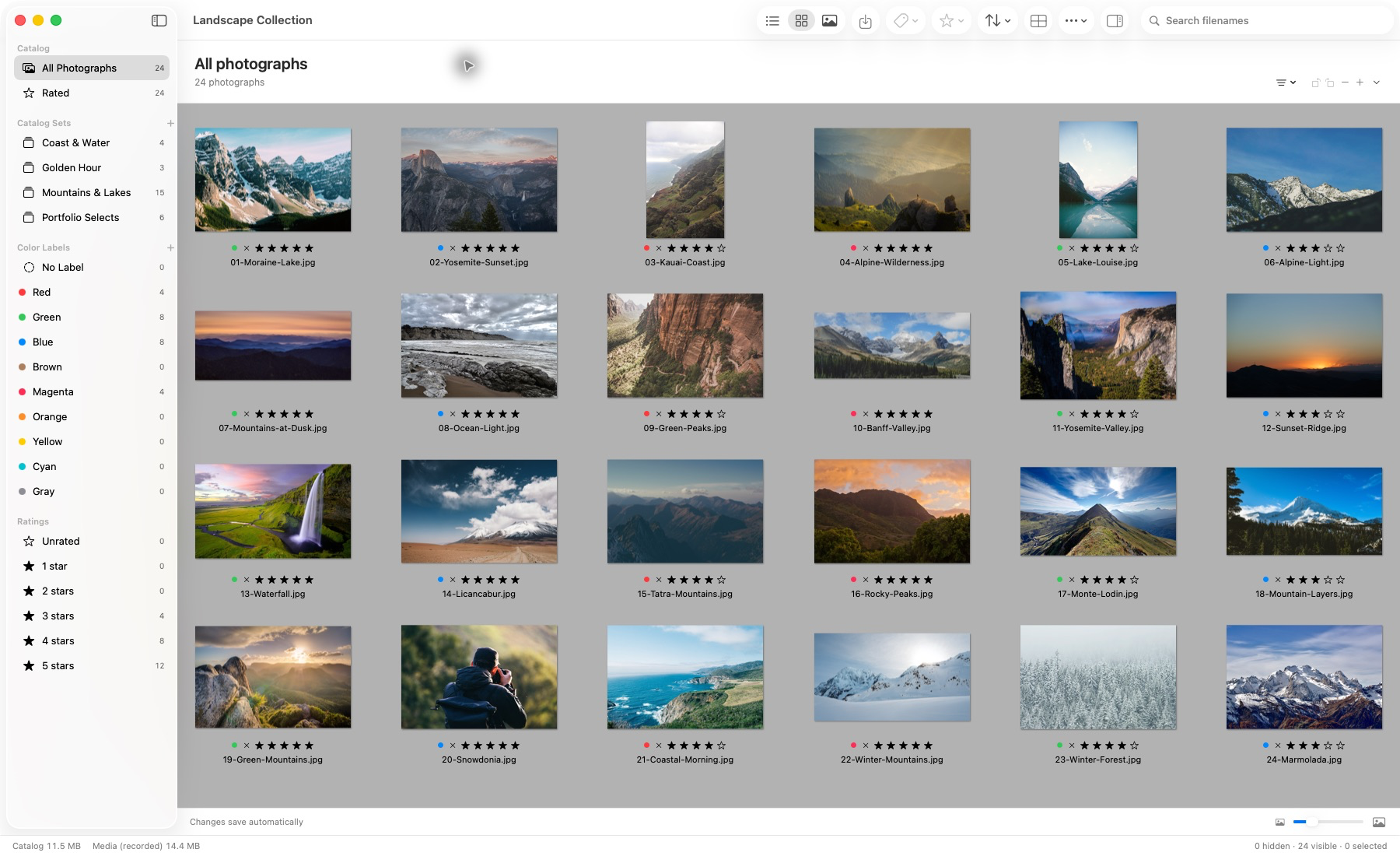
Actual application capture. Photographs remain in their source locations.
During a photographic import, committed batches become available for browsing, rating and labeling while import continues. The current status strip distinguishes imported photographs from successfully stored offline previews. Stop retains committed work. An imported count does not mean every full-resolution image has finished rendering.
A catalog is one layer of the library. It does not automatically make an external drive available, turn a preview into an original, or supply a backup. Read what a photo catalog does before choosing whether to divide your own library by job, year or another working boundary.
Separate ratings, labels and keywords
Give each tool one job. A rating can express a photographic decision: one star means worth another look, three means a strong selection, and five means a final portfolio candidate. These meanings are only an example. Write down your own scale and keep it consistent instead of changing its meaning halfway through a job.
Use color labels for a different dimension, such as review state. A color might mean needs closer inspection or ready for editing. A catalog set answers a grouping question. A keyword describes the photograph itself: a place, subject or activity. Do not make a single color carry all three meanings.
The IPTC Photo Metadata Standard defines descriptive and rights-related properties used in photographic workflows. Standard field names help explain what information means, but do not guarantee that every application edits, searches or writes every field.
That boundary matters in Lightbox Pro: supported imported descriptions, keywords and custom-field values are retained as read-only information in the reviewed build. Do not plan a native keyword-authoring or keyword-search workflow around that preservation capability. Use a separately verified metadata tool when those operations are essential, and test how its changes appear in your catalog.
A manageable first session
- Protect the sample. Confirm a separate backup of the job and any existing catalog before reorganizing.
- Establish the file roles. Identify originals, working edits, sidecars and exports. Record uncertain material instead of discarding it.
- Catalog the photographs. Check that a few images open at their expected dimensions and that their source locations are correct.
- Make one review pass. Mark photographs worth revisiting. Leave ambiguous frames for comparison rather than interrupting the first pass with every close decision.
- Build two useful groups. A job shortlist and a subject collection are enough to test whether the structure answers real questions.
- Save, reopen and retrieve. Find a particular photograph again using the job, a rating or a set. A system succeeds when it helps retrieval, not when it has the most categories.
Then process the next job using the same rules. For a large existing archive, a rolling approach lets recent work become dependable while older folders remain clearly marked for review. These are organizational steps, not a performance promise or a requirement to reimport every disk at once.
Back up the work and the decisions
Protect original photographs, catalogs, sidecars, important edits and delivery records. If the catalog lives on the Mac and the photographs live on an external disk, both locations need coverage. Check backup exclusions rather than assuming the external disk is included.
Apple’s Time Machine instructions explain backup setup and restoration on a Mac. Whichever method you use, restore a sample catalog and photograph to a separate test location. Confirm that they are readable before relying on the backup. A second folder on the same failing disk does not provide an independent recovery copy.
Keep the system small enough to maintain
Finish a job by recording where its originals, catalog and backups live. Keep final exports distinct from files that are still changing. Review a few saved selections after reopening the catalog, and check that the originals remain accessible before archiving a working drive.
If the existing folders already make sense, leave them in place and use referenced catalog organization above them. If the collection depends on an aging database, start with preserving the old catalog. For questions about evaluating the current Lightbox Pro build against your own library, contact software support.