
Organizing Photos Without Moving Original Files
Your photographs can stay where they already live while your working organization changes. A referenced catalog separates the file’s location from the many ways you need to find and select it.
Understand what the catalog references
A referenced catalog records where a photograph lives and stores information about it. The original may be on the Mac’s internal storage or an external drive. Adding organizational information in the catalog need not move that file into a new folder.
Consider a file at Photo Archive/2024/Coastal Assignment/Originals/DSC_1842.JPG. Its physical location answers where it is stored. The catalog can answer different questions: which assignment contains it, whether it made the shortlist, and which broader collection should include it. Those relationships do not require three additional copies of the JPEG.
This approach does not eliminate file management. The original still needs a dependable location, an available drive and a backup. The catalog needs its own protection too. Its reference is a connection to a file, not a guarantee that the file will always be present.
One original, several useful groups
Imagine a photographer whose archive already uses sensible job folders. They want to prepare a coastal portfolio without disturbing completed assignments. A virtual set can gather contenders from several jobs while leaving the original folder layout intact.
The same photograph might appear in Coastal portfolio, Large print candidates and Publisher review. A nested group can make a larger collection easier to navigate: Portfolio may contain Coast and Mountains. Nesting describes the working organization; it does not imply a matching folder tree on disk.
Lightbox Pro’s reviewed development build 0.1.2 (62) supports local referenced photographs, nested catalog sets and overlapping membership. Thumbnail, List and Media views provide different ways to review the library. The earlier supplied application capture shows sets, ratings and color labels in a landscape demonstration catalog. It illustrates the earlier interface, not the current build or the hypothetical assignment above.
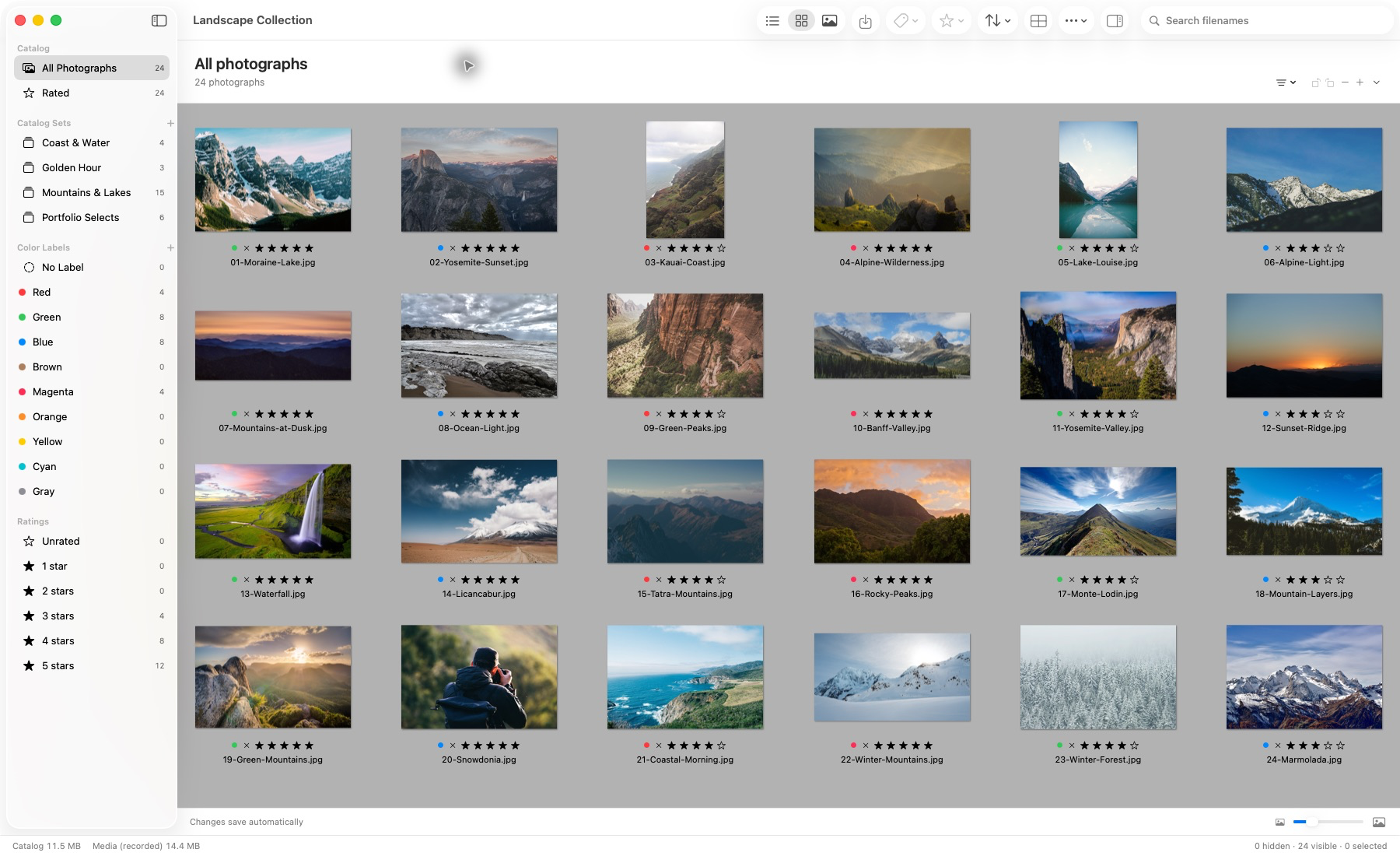
Actual application capture. Photographs remain in their source locations.
Keep set names tied to questions you actually ask. Print candidates is useful if you regularly choose prints. A hierarchy of every conceivable subject can become harder to maintain than the folders it was meant to simplify. For a broader structure, see a practical system for thousands of photographs.
Organize decisions without copying image pixels
Ratings can record your assessment of a frame. Labels can record a review state. Sets can record membership in a project. Together they let a shortlist develop without turning every review stage into another physical folder of duplicated originals.
For example, give promising frames a consistent rating, place print contenders in a set, then compare the closest alternatives. Lightbox Pro has rating, label and filename-filtering controls in the reviewed build. Its Light Table comparison supports a more deliberate second pass. These are manual photographic decisions; they are not a promise of automatic selection.
Not every useful description is necessarily a searchable native field. Lightbox Pro preserves supported imported descriptions, keywords and custom-field values as read-only information. That does not establish native keyword editing, keyword searching or automatic metadata writing back to original files. Evaluate those requirements separately.
More generally, the IPTC standard gives descriptive and rights information a defined meaning. Application-specific sets and standard descriptive metadata serve different purposes. Before relying on interchange, test exactly what your chosen applications retain and expose.
What happens when a drive is offline?
Disconnecting an original-media drive separates two questions: does the catalog know the photograph, and can the application read its full source? A catalog entry can survive while its referenced original is unavailable.
Lightbox Pro can retain persistent previews created after authorized originals have successfully loaded. Those previews support reduced-detail browsing when the source is unavailable. They do not replace the original for a full-resolution sharpness judgment or prove that a source file is backed up. Connect the correct drive and inspect the original when those details matter.
If you can see a preview but cannot access the source, check the drive, recorded location and permissions before concluding that the image has been lost. If an original is genuinely missing, look for a verified backup. Do not discard a catalog simply because its drive is temporarily disconnected, and do not assume a visible thumbnail means recovery is complete.
Plan a move before changing file paths
Leaving originals in place is the simplest starting point. If you need to consolidate drives, make a separate, verified copy of the source tree and preserve the old working arrangement until the new references have been checked. Record the old and new parent locations. Keep relative subfolders and watch for same-named files from different jobs.
When preparing a separate working selection, Lightbox Pro’s default Transfer Copy mode creates verified copies while retaining the source files and catalog references. Copy-and-update-references and explicitly confirmed Move are separate modes with different consequences. Choose Copy when your purpose is to hand off a selection while keeping the archive in place.
A safe reconnection process depends on the application and context. Do not assume that dragging files in Finder, changing a disk name or pressing a refresh command will update every catalog reference. Read the relevant application instructions and test a backed-up sample before committing a large move.
Lightbox Pro’s native Action → Reconnect Missing Files… workflow reviews missing references beneath a parent folder you explicitly choose. It is bounded local discovery with unchecked candidate choices, identity checks and approved backed-up changes. It does not recover deleted original bytes or search every disk.
A matching name alone is insufficient, and renamed-file discovery needs a previously recorded independent source digest. Read the complete missing-photo diagnosis and reconnection procedure for the decision tree, review evidence, permission limits and recovery checklist. Rebuild refreshes a known location; it does not discover a moved source.
Legacy import has its own parent-prefix mapping step. Follow the supported .ivc import instructions for that different context.
Protect both sides of the relationship
Backing up only the catalog protects decisions without necessarily protecting full image data. Backing up only the photographs protects the source without necessarily protecting set membership and review choices. Include both, along with associated editing documents or sidecars used elsewhere in the workflow.
For an external library, check that the backup covers that drive. Apple documents Time Machine backup and restoration; confirm your own configuration and test restoring a sample to a separate location. Record enough folder context to understand how the restored catalog should find its originals.
Distinguish organizational removal from physical deletion before using any destructive command. Removing a photograph from one virtual group, removing its catalog record and deleting its source file are different intentions. Read the command’s confirmation and retain a recoverable backup whenever the result could affect original media.
Test with a small working library
- Choose existing folders. Use a backed-up sample with recognizable photographs and record their locations.
- Create useful overlap. Put one photograph in two catalog sets and apply a rating or label. Confirm that the original remains in the recorded location.
- Reopen and retrieve. Save and reopen the catalog, revisit both sets and open the original at useful detail.
- Check the recovery plan. Identify which backup contains the catalog and which contains its original media. Test a separate restoration before depending on it.
Lightbox Pro is an independent native Mac application by Zippi Technologies; these capabilities describe the reviewed development build, not an announced public release. Explore the cataloging guide for the wider model, or ask software support about evaluating your existing folder structure.