
Photo Culling Software for Wedding Photographers
Wedding culling is a sequence of decisions about people, moments and the story of a day. A clear first pass and a deliberate comparison pass make those decisions easier to defend and find again.
Define what a keeper means
The strongest frame in a wedding sequence is not always the technically neatest. A glance between family members may matter more than a cleaner background. A group portrait needs a different review from a quiet preparation moment or a fast-changing dance floor.
Before culling, separate three judgments: whether the file is usable, whether the moment deserves a place in the story, and which frame best represents that moment. Trying to resolve all three on every photograph can make a first pass feel endless.
This guide describes a manual workflow. Software can keep photographs visible, move between frames and record choices; the photographer supplies the editorial judgment. It does not assume automated face ranking, duplicate detection or AI selection.
Prepare the review
Keep the camera originals and a separate backup secure before making destructive decisions. Record which cards and folders belong to the job. If several cameras were used, check the apparent sequence rather than assuming every device clock agrees. A confusing capture order can turn one moment into several disconnected review sessions.
Create a job-level collection and, where useful, smaller sets for preparation, ceremony, portraits and reception. These are organizational groups, not a reason to duplicate the original files. Keep the full job available so a tight shortlist does not hide an important transition or a missing family group.
Choose a simple rating key. For example: one star means “worth a second look,” three means “strong candidate,” and five means “final photographer selection.” This is a suggested convention, not a built-in Lightbox Pro rule. Reserve color labels for a separate purpose, such as comparison required or retouching note.
Make a first pass without overworking it
Review at a size that lets you understand the moment. Mark viable frames and move forward. Avoid repeatedly zooming into an obviously unneeded duplicate while dozens of unseen photographs remain. Equally, do not reject a fleeting moment solely because the adjacent thumbnail looks similar.
- Establish coverage. Notice whether each part of the day has a usable beginning, middle and transition.
- Mark candidates. Apply the same initial rating consistently rather than inventing a new distinction for every frame.
- Flag uncertainty. Give close calls a comparison label or set, then continue.
- Keep deletion separate. An unrated photograph is simply outside the current shortlist. It is not permission to remove a camera original.
The reviewed Lightbox Pro build 0.1.2 (60) provides keyboard navigation, ratings, labels, filtering and sets for this manual process. Committed import batches become browsable before offline-preview preparation finishes, so navigation, rating and labeling can continue during import. The status strip distinguishes committed photographs from ready previews. This is not a camera-format or speed benchmark.
Current search is filename-based. Supported imported keywords remain read-only; native keyword editing and automated wedding-specific subject analysis are not established by this review.
Compare the close calls
A second pass is where side-by-side inspection earns its place. Select a small group from the same moment. Compare expression and gesture at an overall view, then examine the relevant detail using available originals. Keep the intended output in mind: a full-length spread and a small supporting frame may place different demands on detail.
Light Table in the reviewed build opens one to six selected photographs. Linked zoom and pan help inspect corresponding areas; independent control helps when framing differs. Rate or label a photograph only after confirming which pane is active. A comparison should reduce uncertainty, not introduce uncertainty about the target of a command.
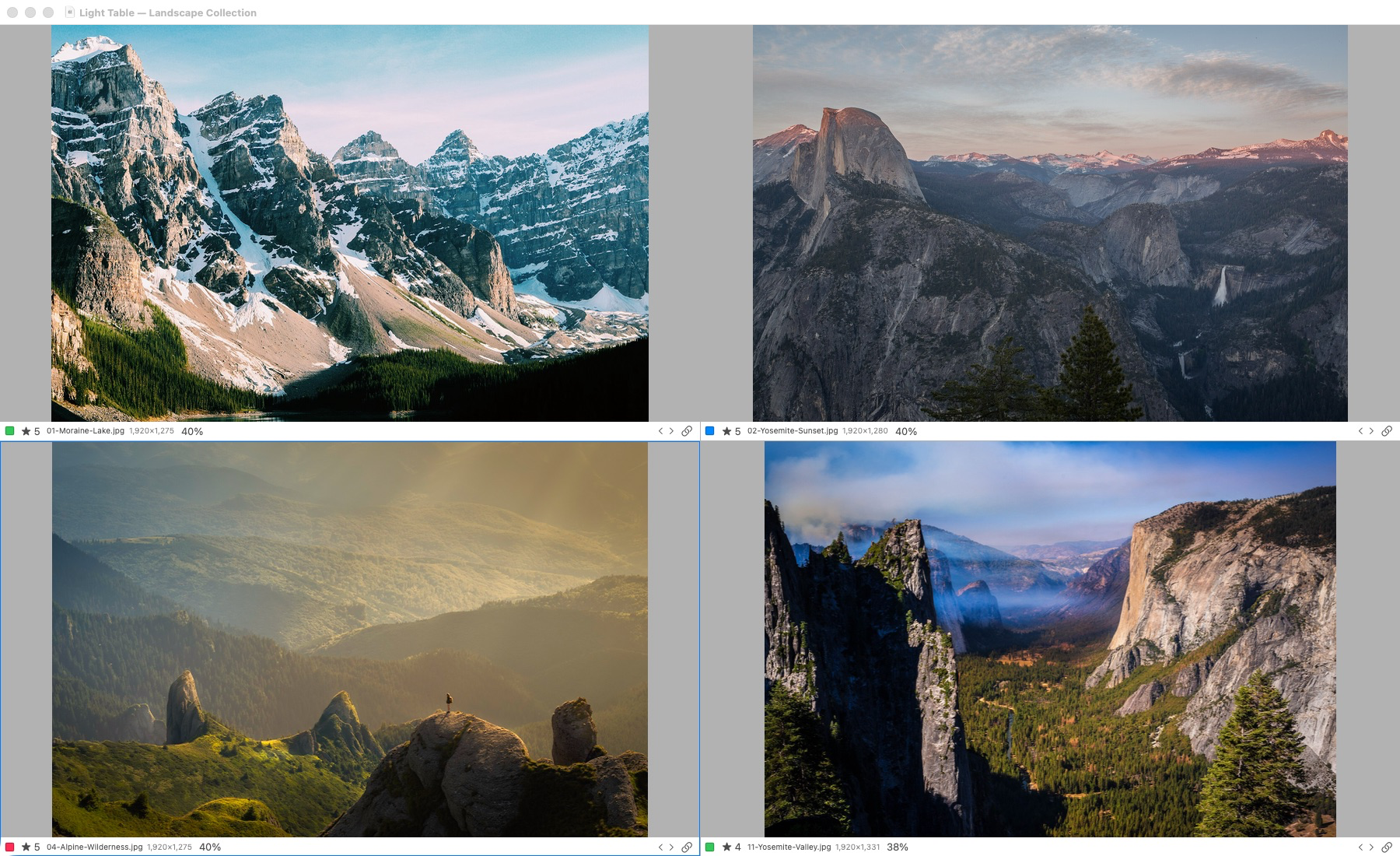
Actual application capture. Light Table supports one to six selected photographs. Original-detail inspection requires access to the originals; offline previews have reduced detail.
This earlier build-50 Light Table capture uses landscape photographs to demonstrate the real comparison interface. It predates Loupe and is not a wedding shoot or a before-and-after culling result. The wedding scenario below is a hypothetical example of applying the same viewing tools.
Use L to toggle the pointer-following Loupe in a focused photograph viewer, with 100%, 200% or 400% inspection available from its controls. It follows keyboard navigation without changing the ordinary comparison zoom. Check the reported detail quality: reduced offline previews cannot prove eyelash detail, unapplied edits are editing previews, and system RAW imagery remains explicitly detail-unverified. Access to a RAW file alone is not proof of verified sensor-level sharpness.
A practical selection example
Imagine a hypothetical portrait sequence with eight frames. Two have distracting movement, four have similar poses, and two contain a more relaxed interaction. The first pass marks six viable candidates. It does not need to choose an album spread yet.
Compare the four similar poses first. Check everyone’s expression, hands, clothing and the edges of the composition; then inspect the face detail that matters. Keep one clear portrait. Compare the two relaxed frames separately and decide whether either adds a different feeling to the story.
The result may be one formal portrait and one candid moment. Keep both in a photographer-selects set. A separate album-consideration set can contain either or both without copying files. This example illustrates a method, not measured Lightbox Pro results or a promised reduction ratio.
Turn decisions into an editing shortlist
Before handing off, review the shortlist as a sequence. A collection of individually strong pictures can still omit an important person or repeat the same idea too often. Revisit the full job when the story exposes a gap.
Keep photographer selections distinct from later client print or album choices. Do not treat a local set as evidence that a private gallery has been published or client choices synchronized. Those online delivery steps require their own verified workflow.
In the reviewed build, Transfer’s Copy mode can prepare separate selected original files while retaining source files and catalog references. This is a file-copy handoff, not rendered JPEG proof export or RAW development. Confirm the chosen transfer mode and destination before starting.
Evaluate the software honestly
Try a backed-up representative job on your own Mac. Check navigation, the targeting of ratings, comparison detail, missing-original notices and saved decisions after reopening. Time a defined task only if speed matters to the comparison; a phrase such as “fastest workflow” is not a benchmark.
For the wider job sequence, read the wedding workflow from import to final selection. For the inspection pass, continue with comparing photographs side by side on Mac. Field notes records confirmed product progress.