
RAW Photo Workflow for Mac
A RAW workflow has several handoffs: from card to archive, from a large shoot to a selection, and from camera data to a finished photograph. Keeping those handoffs explicit protects both the files and the decisions.
Three things that are often called RAW editing
Displaying a RAW file, changing its preview and developing its sensor data are different operations. A program may show a camera-generated JPEG embedded inside a RAW file, render a view through an operating-system service, or use its own RAW processor. The file extension alone does not tell you which path produced the picture on screen.
A preview is useful for composition and selection. Sensor development interprets camera data to produce an image, with processing choices that can include white balance, tone and color. A crop applied to already rendered pixels does not demonstrate that a program has a complete RAW development pipeline. Adobe explains the distinction between camera data, generated previews and stored adjustment instructions in its Camera Raw introduction.
There is a third operation: copying a RAW file. It preserves a source for the next application, but says nothing about whether the copying program can develop that camera’s data. Keep these questions separate when evaluating a photographic workflow.
Make a dependable starting copy
Start with a stable job folder on working storage. For example, 2026-10-18_River-Wedding/Originals/Camera-A/Card-01/ records a job and its source without requiring every photograph to carry a long descriptive name. Keep a second camera or card in its own branch when duplicate camera filenames could collide.
- Copy the complete intended source set. Include RAW files, any paired JPEGs and relevant sidecars. Preserve the card until the copies have been checked.
- Verify the transfer. Reconcile expected file counts and sizes, open representative files from each camera and card, and investigate transfer errors. Where your copying tool supports content verification, use it. A matching count alone cannot prove identical bytes.
- Make a separate backup. Put another verified copy on separate storage. Include the catalog and later adjustment records in the backup plan; a thumbnail cache cannot replace them.
- Record what was done. A small job note can identify source cards, copy locations, verification results and the application used. This becomes valuable when revisiting an old shoot.
Use the ingest and backup tools you have actually validated. Do not infer a complete camera-card ingest system from the fact that an application can add local photographs to a catalog.
Lightbox Pro build 60 lets you browse and manually cull committed photographs while catalog import continues. Its bottom status strip separates committed entries from stored offline-preview preparation and offers Stop. An imported count is not a count of completed full-resolution RAW renders, and catalog import does not replace a verified card-to-backup copying procedure.
Review before developing everything
First establish coverage: did the job arrive intact, and can you view the expected sequences? Then select. A rough preview is often sufficient to remove a repeated framing, while a critical focus decision needs access to the original and an appropriate detailed rendering.
Separate a definite select from an unresolved exposure. A dark-looking preview may deserve inspection in your RAW editor before rejection; it is not evidence that the sensor file has no recoverable detail. Conversely, a pleasing small preview does not prove that the subject is sharp. Use a temporary review label rather than forcing either decision.
In the reviewed Lightbox Pro build, local catalogs, ratings, labels and catalog sets support that manual selection stage. Light Table compares one to six selected photographs with linked or independent zoom and pan. A native Loupe follows the pointer, with L toggling it on and off and toolbar choices for 100%, 200% and 400% inspection. Check the detail status: raster source detail, a system-rendered RAW image and a reduced offline preview do not establish the same evidence for sharpness. The side-by-side comparison guide explains the inspection routine.
Preview edits and a useful boundary
Reviewed Lightbox Pro 0.1.2 (60) includes editable crop and rotation, Light Brightness/Contrast, Levels, Color Balance, and Black & White, Sepia and custom Duotone treatments. Adjustments are stored in the catalog; the original image files stay unchanged. Native checks include JPEG, a large TIFF and a Canon CR2 preview case, with saved adjustments, Before, Undo/Redo and reopening. These samples are not a camera compatibility list.
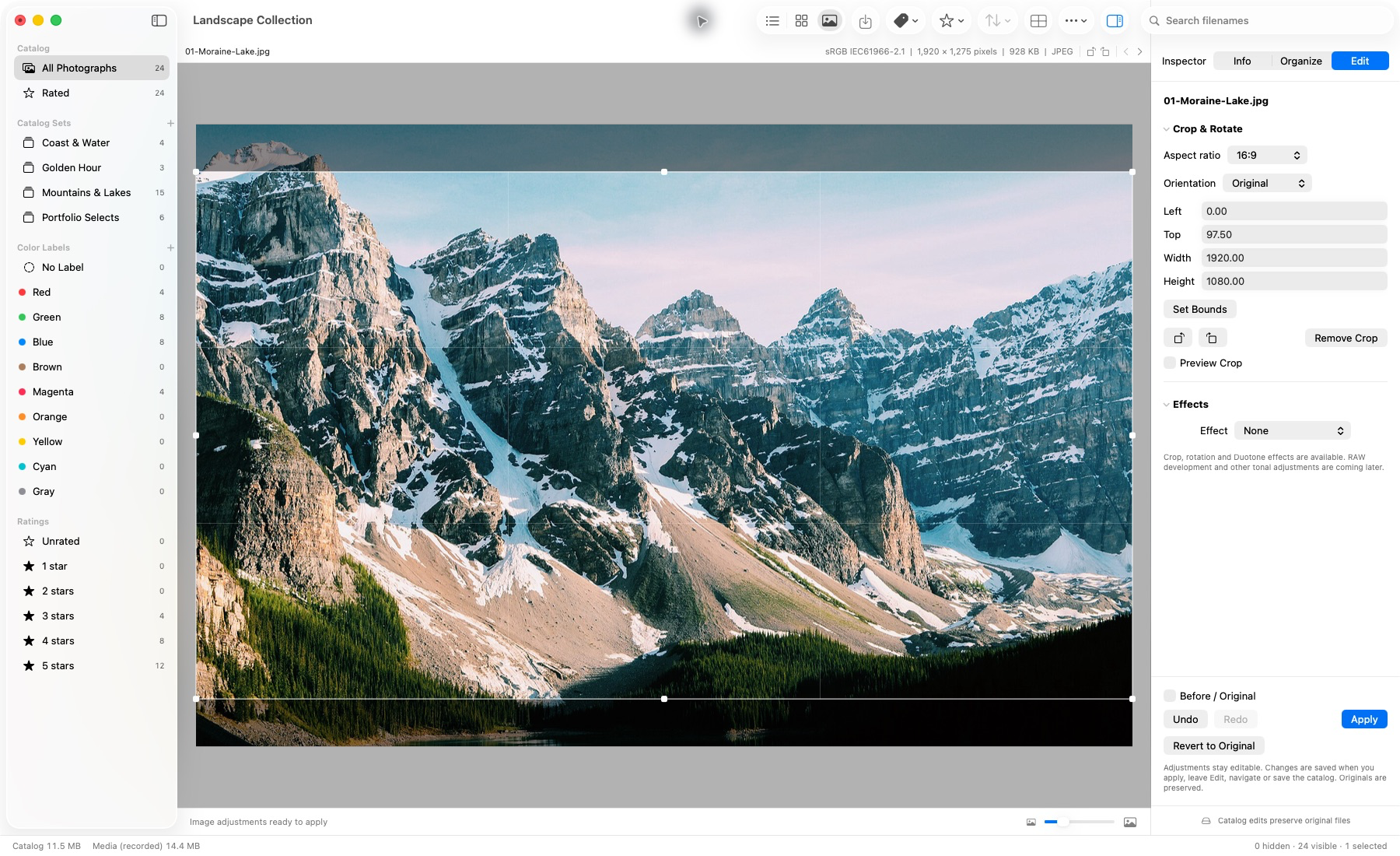
Actual application capture. Editable crop settings are saved in the catalog; the original photograph stays unchanged.
The supplied screenshot records the earlier build-50 crop interface; it does not show the newer tonal controls or Loupe. In the current reviewed application, crop guides start hidden and are enabled explicitly with Show Crop Handles.
- Light and Levels
- Brightness/Contrast and black-point, midtone/gamma and white-point controls adjust the rendered image. The displayed Original RGB histogram describes the prepared source preview; it is not a live adjusted or sensor-data histogram.
- Color Balance
- Cyan/Red, Magenta/Green and Yellow/Blue controls change color balance in rendered RGB. They are not camera-calibrated Kelvin/Tint white balance.
- RAW processing boundary
- The current editor works on an ImageIO-rendered RGB image. Two documented CR2 probes yielded 2048 × 1365, 8-bit sRGB editor inputs. That is a specific finding, not a claim that every RAW image is an embedded JPEG. Existing preview controls have not passed commercial RAW-quality acceptance.
- What remains separate
- App-controlled sensor development, calibrated RAW white balance/exposure/highlight-shadow recovery, the required interactive RAW Levels tools and finished protected rendered export remain implementation work.
A preview crop can help you judge framing before committing editing time. Do not assume that another application will read that catalog recipe. A nondestructive decision can still be private to the program that recorded it.
Hand off the selection deliberately
For an illustrative 700-frame portrait session, keep an initial candidate set, an unresolved set and a final editing set. These are example organizational choices, not measured throughput or a recommended delivery count. Once the final set is settled, create a clear correspondence between the selected catalog entries and the original files that the RAW editor will receive.
Lightbox Pro’s reviewed Transfer Copy mode can create separate copies while retaining the source references. RAW Collection also has tested matching and non-overwriting copy logic for collecting RAW candidates corresponding to selected JPEG stems; missing or ambiguous matches require review. Neither operation is rendered export, and a stem match is not permission to pick an arbitrary duplicate from another card.
The reviewed application also provides Open With in the Action menu and contextual menu. Its tested handoff checks source readability before asking macOS to open the selection in a default or chosen application, and reports partial failures. This delegates access to the external application; it does not control that editor’s later writes or translate Lightbox adjustment recipes.
Before a full handoff, test one selected photograph. Open the intended RAW in your chosen editor, confirm camera support and file identity, save an adjustment, render a small test output, and establish how that output will be tracked. Do not assume ratings or editing recipes automatically travel between applications.
Render, check and retain the result
Use a verified RAW processor for the sensor-development stage you require. Keep a reproducible relationship between the source, its adjustment record and the rendered result. Adobe documents that its adjustment instructions may live in a database, sidecar or DNG; do not discard a sidecar merely because the source photograph still opens.
Lightbox Pro now has a tested internal full-source JPEG/TIFF/PNG preparation stage. It rejects RAW as needing a separate sensor pipeline, and it is not yet a finished rendering/export interface. Use the external processor’s verified output for client proofs or print files rather than mistaking a catalog preview or copied RAW for an exported photograph.
Make separate output presets for distinct destinations. A small review JPEG, a print-lab file and an archival master can require different dimensions, color handling and sharpening. Follow the actual recipient’s specifications rather than treating one generic “high quality” setting as suitable for everything.
- Inspect representative output files at their delivered dimensions and check crops, orientation and filenames.
- Check the intended color profile and whether the destination can use it.
- Keep finished output separate from camera originals so a later export cannot accidentally overwrite the source.
- Back up originals, catalog decisions, editing instructions and final output as distinct parts of the job.
Evaluate your own camera workflow
A useful acceptance test is small and specific: your exact camera model, an ordinary exposure, a difficult exposure, a rotated frame and any RAW+JPEG pairing you use. Check preview identity, detailed rendering, adjustment persistence, output and reopening. Record the application versions. Repeat when an important processing component changes.
For Lightbox Pro, this article establishes the verified selection and preview boundary of the available build; it does not announce a finished RAW editor or a public release. See Field notes or ask support about the current build. For the library around those files, continue with organizing photographs without moving originals.